2 yrs - Translate

🎨 Lesson: Mastering Color Theory in AI Art
Why Color Theory Matters?
Color influences mood, storytelling, and visual impact in AI-generated images. Understanding color theory helps you create stunning, harmonious compositions that evoke strong emotions.

🌟 Method 1: Using Prompts to Control Colors
AI can sometimes generate random colors, but you can guide it by specifying tones, palettes, and lighting effects.

How to Format Your Prompt:
βœ… Mention a specific color palette (e.g., "muted pastels," "warm autumn tones".
βœ… Use color psychology (e.g., "soft pinks for romance," "deep blues for mystery".
βœ… Specify contrast, lighting, or gradients for depth.

Example Prompts:
πŸ‘‰ "A cyberpunk cityscape illuminated in neon blue and magenta, with a glowing purple sky."
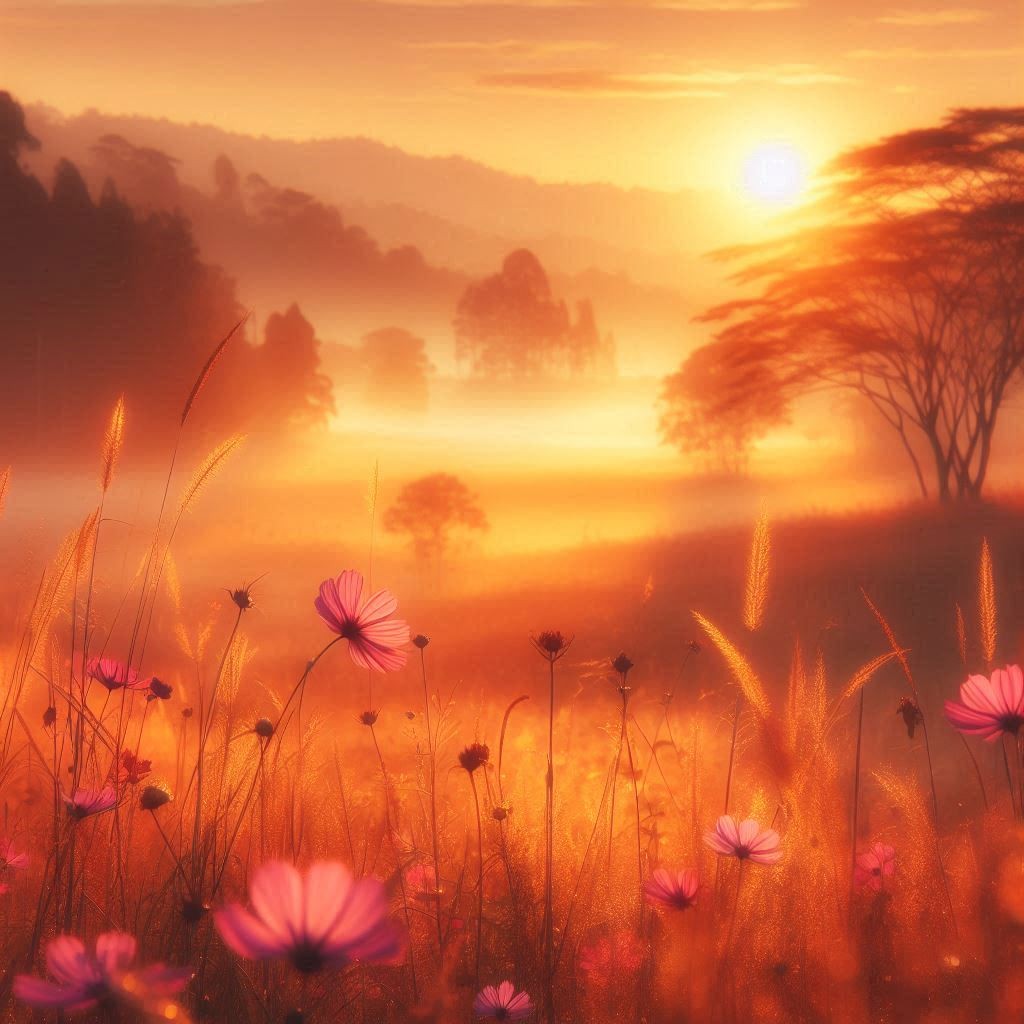
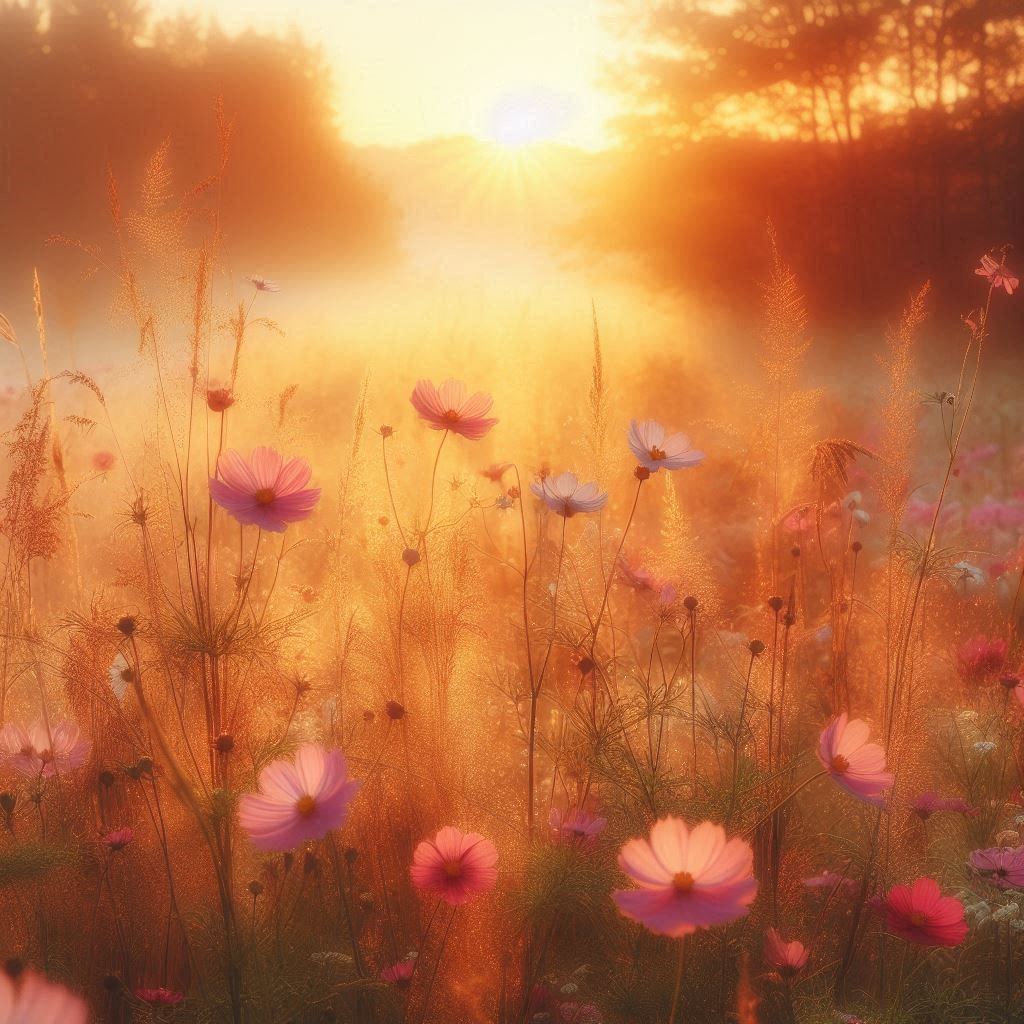
πŸ‘‰ "A serene meadow at sunrise, bathed in soft golden light, with warm pastel pink and peach wildflowers swaying in the breeze."
πŸ‘‰ "A fantasy portrait of a warrior, painted in rich jewel tonesβ€”emerald green, sapphire blue, and deep ruby red."

πŸ“ Troubleshooting:

If colors look dull, try adding:
"Vibrant, high-contrast hues with dynamic lighting."
If colors clash, refine the scheme:
"A harmonious complementary color palette of teal and coral with soft golden accents."
πŸ–Œ Method 2: Editing AI Art for Better Colors
If the AI output lacks color harmony, post-editing can fix it.

Best Tools for Color Adjustments:
βœ” Photoshop – Hue/Saturation and Color Balance tools.
βœ” Canva – Pre-made color filters to unify tones.
βœ” Krita/GIMP – Manual color correction and blending.

Steps to Enhance Colors in Photoshop:
1️⃣ Use the Color Balance Tool – Adjust shadows, midtones, and highlights separately.
2️⃣ Apply Gradient Maps – Create cinematic effects with color overlays.
3️⃣ Increase Contrast & Saturation – Make colors pop without oversaturation.
4️⃣ Try Selective Coloring – Enhance a single color while muting others for drama.

πŸ”₯ Pro Tips for Color Mastery
βœ” Complementary Colors – Opposite colors (e.g., blue & orange) create striking contrast.
βœ” Analogous Colors – Colors close to each other (e.g., blue, teal, and purple) feel harmonious.
βœ” Monochrome Palettes – Using different shades of one color adds depth and elegance.
βœ” Lighting Effects – Soft warm light for cozy vibes, dramatic cool light for mystery.
image
2 yrs - Translate

🎨 Lesson: Mastering Color Theory in AI Art
Why Color Theory Matters?
Color influences mood, storytelling, and visual impact in AI-generated images. Understanding color theory helps you create stunning, harmonious compositions that evoke strong emotions.

🌟 Method 1: Using Prompts to Control Colors
AI can sometimes generate random colors, but you can guide it by specifying tones, palettes, and lighting effects.

How to Format Your Prompt:
βœ… Mention a specific color palette (e.g., "muted pastels," "warm autumn tones".
βœ… Use color psychology (e.g., "soft pinks for romance," "deep blues for mystery".
βœ… Specify contrast, lighting, or gradients for depth.

Example Prompts:
πŸ‘‰ "A cyberpunk cityscape illuminated in neon blue and magenta, with a glowing purple sky."
πŸ‘‰ "A serene meadow at sunrise, bathed in soft golden light, with warm pastel pink and peach wildflowers swaying in the breeze."
πŸ‘‰ "A fantasy portrait of a warrior, painted in rich jewel tonesβ€”emerald green, sapphire blue, and deep ruby red."

πŸ“ Troubleshooting:

If colors look dull, try adding:
"Vibrant, high-contrast hues with dynamic lighting."
If colors clash, refine the scheme:
"A harmonious complementary color palette of teal and coral with soft golden accents."
πŸ–Œ Method 2: Editing AI Art for Better Colors
If the AI output lacks color harmony, post-editing can fix it.

Best Tools for Color Adjustments:
βœ” Photoshop – Hue/Saturation and Color Balance tools.
βœ” Canva – Pre-made color filters to unify tones.
βœ” Krita/GIMP – Manual color correction and blending.

Steps to Enhance Colors in Photoshop:
1️⃣ Use the Color Balance Tool – Adjust shadows, midtones, and highlights separately.
2️⃣ Apply Gradient Maps – Create cinematic effects with color overlays.
3️⃣ Increase Contrast & Saturation – Make colors pop without oversaturation.
4️⃣ Try Selective Coloring – Enhance a single color while muting others for drama.

πŸ”₯ Pro Tips for Color Mastery
βœ” Complementary Colors – Opposite colors (e.g., blue & orange) create striking contrast.
βœ” Analogous Colors – Colors close to each other (e.g., blue, teal, and purple) feel harmonious.
βœ” Monochrome Palettes – Using different shades of one color adds depth and elegance.
βœ” Lighting Effects – Soft warm light for cozy vibes, dramatic cool light for mystery.

image
2 yrs - Translate

🎨 Lesson: Mastering Color Theory in AI Art
Why Color Theory Matters?
Color influences mood, storytelling, and visual impact in AI-generated images. Understanding color theory helps you create stunning, harmonious compositions that evoke strong emotions.

🌟 Method 1: Using Prompts to Control Colors
AI can sometimes generate random colors, but you can guide it by specifying tones, palettes, and lighting effects.

How to Format Your Prompt:
βœ… Mention a specific color palette (e.g., "muted pastels," "warm autumn tones".
βœ… Use color psychology (e.g., "soft pinks for romance," "deep blues for mystery".
βœ… Specify contrast, lighting, or gradients for depth.

Example Prompts:
πŸ‘‰ "A cyberpunk cityscape illuminated in neon blue and magenta, with a glowing purple sky."
πŸ‘‰ "A serene meadow at sunrise, bathed in soft golden light, with warm pastel pink and peach wildflowers swaying in the breeze."
πŸ‘‰ "A fantasy portrait of a warrior, painted in rich jewel tonesβ€”emerald green, sapphire blue, and deep ruby red."

πŸ“ Troubleshooting:

If colors look dull, try adding:
"Vibrant, high-contrast hues with dynamic lighting."
If colors clash, refine the scheme:
"A harmonious complementary color palette of teal and coral with soft golden accents."
πŸ–Œ Method 2: Editing AI Art for Better Colors
If the AI output lacks color harmony, post-editing can fix it.

Best Tools for Color Adjustments:
βœ” Photoshop – Hue/Saturation and Color Balance tools.
βœ” Canva – Pre-made color filters to unify tones.
βœ” Krita/GIMP – Manual color correction and blending.

Steps to Enhance Colors in Photoshop:
1️⃣ Use the Color Balance Tool – Adjust shadows, midtones, and highlights separately.
2️⃣ Apply Gradient Maps – Create cinematic effects with color overlays.
3️⃣ Increase Contrast & Saturation – Make colors pop without oversaturation.
4️⃣ Try Selective Coloring – Enhance a single color while muting others for drama.

πŸ”₯ Pro Tips for Color Mastery
βœ” Complementary Colors – Opposite colors (e.g., blue & orange) create striking contrast.
βœ” Analogous Colors – Colors close to each other (e.g., blue, teal, and purple) feel harmonious.
βœ” Monochrome Palettes – Using different shades of one color adds depth and elegance.
βœ” Lighting Effects – Soft warm light for cozy vibes, dramatic cool light for mystery.

image
2 yrs - Translate

🎨 Lesson: Creating Depth & Perspective in AI Art
Why Depth Matters?
Depth makes AI-generated images feel more immersive and dynamic. It guides the viewer’s eye and adds realism, whether you're working on landscapes, portraits, or fantasy scenes.

🌟 Method 1: Using Prompts to Create Depth
Many AI tools can simulate depth if you describe it correctly.

How to Format Your Prompt:
βœ… Use perspective terms (e.g., "bird’s-eye view," "low-angle shot".
βœ… Mention foreground, middle ground, and background details.
βœ… Specify blurring effects (e.g., "soft-focus background".

Example Prompts:
πŸ‘‰ "A misty enchanted forest, with ancient towering trees in the background, a glowing pond in the middle ground, and detailed wildflowers in the foreground."
πŸ‘‰ "A futuristic cyberpunk street scene, neon signs reflecting on wet pavement, with blurred pedestrians in the distance to create depth."
πŸ‘‰ "A majestic castle on a cliff, viewed from a low-angle perspective, making it appear grand and imposing against a dramatic cloudy sky."

πŸ“ Troubleshooting:

If the AI generates a flat image, try:
"A vast desert with shifting dunes in the foreground, a caravan in the distance, and mountains fading into the hazy horizon."
If the perspective feels off, be specific:
"A winding road leading toward a futuristic city skyline, drawn in a dynamic three-point perspective."
πŸ–Œ Method 2: Enhancing Depth with Editing Tools
If the AI image lacks depth, post-processing can help.

Best Tools for Enhancing Depth:
βœ” Photoshop – Blur tools & lighting adjustments.
βœ” Canva – Layering elements for a sense of distance.
βœ” Krita – Custom shading and highlight enhancements.

Steps to Enhance Depth in Photoshop:
1️⃣ Use Blur (Gaussian Blur for background, sharp focus for foreground).
2️⃣ Adjust Atmospheric Perspective (reduce contrast & saturation in distant areas).
3️⃣ Create Light & Shadow Gradients (darker foreground, lighter background for realism).
4️⃣ Layer Objects to Simulate Distance (place large, detailed objects in the foreground and smaller, faded objects in the background).

πŸ”₯ Pro Tips for More Depth & Realism
βœ” Aerial Perspective – Distant objects should be hazy or slightly desaturated.
βœ” Leading Lines – Roads, rivers, or light rays help guide the eye.
βœ” Overlap Elements – Make objects partially cover each other for realism.

image
2 yrs - Translate

🎨 Lesson: Creating Depth & Perspective in AI Art
Why Depth Matters?
Depth makes AI-generated images feel more immersive and dynamic. It guides the viewer’s eye and adds realism, whether you're working on landscapes, portraits, or fantasy scenes.

🌟 Method 1: Using Prompts to Create Depth
Many AI tools can simulate depth if you describe it correctly.

How to Format Your Prompt:
βœ… Use perspective terms (e.g., "bird’s-eye view," "low-angle shot".
βœ… Mention foreground, middle ground, and background details.
βœ… Specify blurring effects (e.g., "soft-focus background".

Example Prompts:
πŸ‘‰ "A misty enchanted forest, with ancient towering trees in the background, a glowing pond in the middle ground, and detailed wildflowers in the foreground."
πŸ‘‰ "A futuristic cyberpunk street scene, neon signs reflecting on wet pavement, with blurred pedestrians in the distance to create depth."
πŸ‘‰ "A majestic castle on a cliff, viewed from a low-angle perspective, making it appear grand and imposing against a dramatic cloudy sky."

πŸ“ Troubleshooting:

If the AI generates a flat image, try:
"A vast desert with shifting dunes in the foreground, a caravan in the distance, and mountains fading into the hazy horizon."
If the perspective feels off, be specific:
"A winding road leading toward a futuristic city skyline, drawn in a dynamic three-point perspective."
πŸ–Œ Method 2: Enhancing Depth with Editing Tools
If the AI image lacks depth, post-processing can help.

Best Tools for Enhancing Depth:
βœ” Photoshop – Blur tools & lighting adjustments.
βœ” Canva – Layering elements for a sense of distance.
βœ” Krita – Custom shading and highlight enhancements.

Steps to Enhance Depth in Photoshop:
1️⃣ Use Blur (Gaussian Blur for background, sharp focus for foreground).
2️⃣ Adjust Atmospheric Perspective (reduce contrast & saturation in distant areas).
3️⃣ Create Light & Shadow Gradients (darker foreground, lighter background for realism).
4️⃣ Layer Objects to Simulate Distance (place large, detailed objects in the foreground and smaller, faded objects in the background).

πŸ”₯ Pro Tips for More Depth & Realism
βœ” Aerial Perspective – Distant objects should be hazy or slightly desaturated.
βœ” Leading Lines – Roads, rivers, or light rays help guide the eye.
βœ” Overlap Elements – Make objects partially cover each other for realism.

image
2 yrs - Translate

🎨 Lesson: Creating Depth & Perspective in AI Art
Why Depth Matters?
Depth makes AI-generated images feel more immersive and dynamic. It guides the viewer’s eye and adds realism, whether you're working on landscapes, portraits, or fantasy scenes.

🌟 Method 1: Using Prompts to Create Depth
Many AI tools can simulate depth if you describe it correctly.

How to Format Your Prompt:
βœ… Use perspective terms (e.g., "bird’s-eye view," "low-angle shot".
βœ… Mention foreground, middle ground, and background details.
βœ… Specify blurring effects (e.g., "soft-focus background".

Example Prompts:
πŸ‘‰ "A misty enchanted forest, with ancient towering trees in the background, a glowing pond in the middle ground, and detailed wildflowers in the foreground."
πŸ‘‰ "A futuristic cyberpunk street scene, neon signs reflecting on wet pavement, with blurred pedestrians in the distance to create depth."
πŸ‘‰ "A majestic castle on a cliff, viewed from a low-angle perspective, making it appear grand and imposing against a dramatic cloudy sky."

πŸ“ Troubleshooting:

If the AI generates a flat image, try:
"A vast desert with shifting dunes in the foreground, a caravan in the distance, and mountains fading into the hazy horizon."
If the perspective feels off, be specific:
"A winding road leading toward a futuristic city skyline, drawn in a dynamic three-point perspective."
πŸ–Œ Method 2: Enhancing Depth with Editing Tools
If the AI image lacks depth, post-processing can help.

Best Tools for Enhancing Depth:
βœ” Photoshop – Blur tools & lighting adjustments.
βœ” Canva – Layering elements for a sense of distance.
βœ” Krita – Custom shading and highlight enhancements.

Steps to Enhance Depth in Photoshop:
1️⃣ Use Blur (Gaussian Blur for background, sharp focus for foreground).
2️⃣ Adjust Atmospheric Perspective (reduce contrast & saturation in distant areas).
3️⃣ Create Light & Shadow Gradients (darker foreground, lighter background for realism).
4️⃣ Layer Objects to Simulate Distance (place large, detailed objects in the foreground and smaller, faded objects in the background).

πŸ”₯ Pro Tips for More Depth & Realism
βœ” Aerial Perspective – Distant objects should be hazy or slightly desaturated.
βœ” Leading Lines – Roads, rivers, or light rays help guide the eye.
βœ” Overlap Elements – Make objects partially cover each other for realism.

image
2 yrs - Translate

🎨 Lesson: Creating Depth & Perspective in AI Art
Why Depth Matters?
Depth makes AI-generated images feel more immersive and dynamic. It guides the viewer’s eye and adds realism, whether you're working on landscapes, portraits, or fantasy scenes.

🌟 Method 1: Using Prompts to Create Depth
Many AI tools can simulate depth if you describe it correctly.

How to Format Your Prompt:
βœ… Use perspective terms (e.g., "bird’s-eye view," "low-angle shot".
βœ… Mention foreground, middle ground, and background details.
βœ… Specify blurring effects (e.g., "soft-focus background".

Example Prompts:
πŸ‘‰ "A misty enchanted forest, with ancient towering trees in the background, a glowing pond in the middle ground, and detailed wildflowers in the foreground."
πŸ‘‰ "A futuristic cyberpunk street scene, neon signs reflecting on wet pavement, with blurred pedestrians in the distance to create depth."
πŸ‘‰ "A majestic castle on a cliff, viewed from a low-angle perspective, making it appear grand and imposing against a dramatic cloudy sky."

πŸ“ Troubleshooting:

If the AI generates a flat image, try:
"A vast desert with shifting dunes in the foreground, a caravan in the distance, and mountains fading into the hazy horizon."
If the perspective feels off, be specific:
"A winding road leading toward a futuristic city skyline, drawn in a dynamic three-point perspective."
πŸ–Œ Method 2: Enhancing Depth with Editing Tools
If the AI image lacks depth, post-processing can help.

Best Tools for Enhancing Depth:
βœ” Photoshop – Blur tools & lighting adjustments.
βœ” Canva – Layering elements for a sense of distance.
βœ” Krita – Custom shading and highlight enhancements.

Steps to Enhance Depth in Photoshop:
1️⃣ Use Blur (Gaussian Blur for background, sharp focus for foreground).
2️⃣ Adjust Atmospheric Perspective (reduce contrast & saturation in distant areas).
3️⃣ Create Light & Shadow Gradients (darker foreground, lighter background for realism).
4️⃣ Layer Objects to Simulate Distance (place large, detailed objects in the foreground and smaller, faded objects in the background).

πŸ”₯ Pro Tips for More Depth & Realism
βœ” Aerial Perspective – Distant objects should be hazy or slightly desaturated.
βœ” Leading Lines – Roads, rivers, or light rays help guide the eye.
βœ” Overlap Elements – Make objects partially cover each other for realism.

image
2 yrs - Translate

Android moblile for Bytevid Social begins testing next week. We will be asking for testers. We are putting together our incentive plans.

2 yrs - Translate

is the kind of content creators we need in the Bytevid Ecosystem.

GIF